A computer problem is frustrating enough without having to explain it while you are stressed. A few quick notes can help us understand what is happening and choose a sensible place to start. Think of it like describing a noise to a mechanic: when it happens, and what you were doing, can matter as much as the noise itself.
1. Describe what you were trying to do
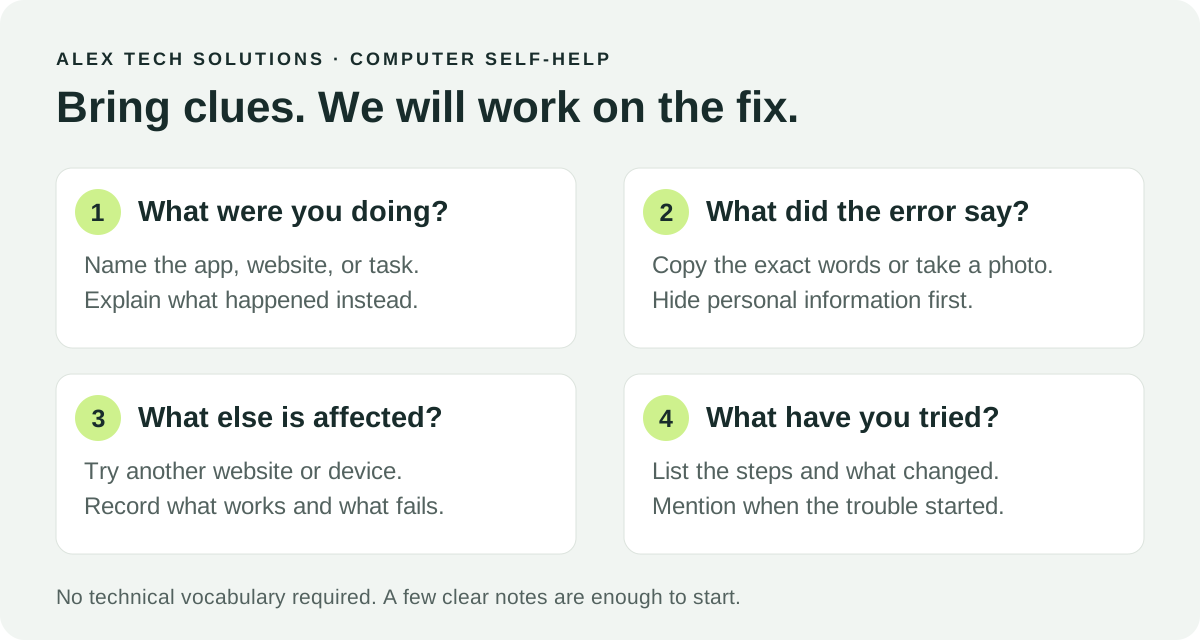
Start with the task, then explain what happened instead. You do not need to know the technical name for the fault.
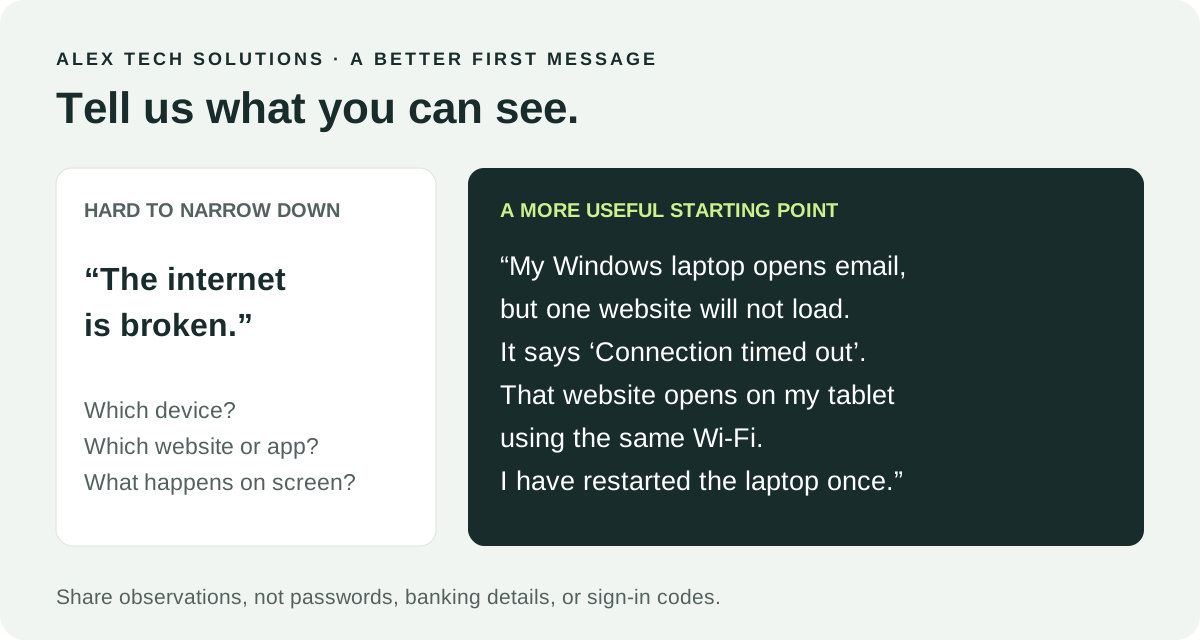
“My computer is broken” gives very little to work with. “I can open my email, but the attachment will not download” gives us a useful starting point. Mention the app or website involved and the last time it worked.
2. Save the exact error message
An error message is a clue. Write down its exact wording, including any numbers, or take a clear photograph with your phone. “Something about a connection” is harder to investigate than the full message.
On Windows, press Windows + Shift + S to select part of the screen with Snipping Tool. Save the capture somewhere you can find it. If the computer is frozen, a phone photo may be easier. Before sharing, crop out passwords, account numbers, private messages, and other personal information.
3. Check whether it affects one thing or several
Try one small comparison and note the result. This helps narrow down where the trouble might be.
- One website will not open? Try another website.
- Your laptop cannot get online? Check another device on the same Wi-Fi. Turn off mobile data on the phone during this comparison so it does not quietly use a different connection.
- One file will not open? Try another file of the same type.
These comparisons provide clues, not a diagnosis. A phone working on Wi-Fi does not prove every part of your home network is working correctly. You also do not need to change router settings to do these checks.
4. Note when the problem started
Did it begin this morning, after moving the desk, or shortly after installing an app? Mention recent changes, even if you are not sure they are connected.
For a problem that comes and goes, note roughly when it happens and how often. For example: “The video call freezes after about ten minutes, but browsing still works.” A simple pattern can be more helpful than trying lots of fixes at once.
5. Check the simple connections
Look at the charger, power cable, monitor cable, and any connected accessories. Check that plugs are seated securely and the monitor is switched on. If a printer is involved, note any lights or messages on its screen.
Save open work before trying a normal restart. If Windows says it is installing an update, do not interrupt it just to follow this checklist. Do not factory-reset your computer or router, open the computer case, or install a “repair” app as a first step.
6. List what you have already tried
A short list prevents us from repeating the same steps. Include what happened after each attempt, even when nothing changed.
For example: “I restarted the laptop once. The error came back. I tried the same website on my tablet, and it opened.” If you changed a setting, mention that too. Avoid making more changes simply to build a longer list.
7. Have the device details ready
Note the brand and model if they are easy to find, whether you use Windows or a Mac, and the app involved. It is fine to say you are unsure; you do not need to dig through settings before asking for help.
Never email or text your password, banking details, or sign-in verification codes. A browser warning telling you to call a number immediately deserves caution: Microsoft says its genuine error messages do not include a phone number to call. Contact a business through details you already trust.
A message you can copy
“Hi Alex, I use a [device] with [Windows/macOS]. When I try to [task], [problem] happens. It started [when]. The exact error is [message]. I have tried [steps]. Other devices or apps [do/do not] have the same problem.”
Need a hand in Belleville or the Quinte region?
You do not need to complete every check before contacting Alex Tech Solutions. Even a clear description and one useful screenshot can make the first conversation easier. Leave anything you are uncomfortable doing for the support session.
Contact Alex or call 647-449-5365.